Overview
SIGMAPRC simulations are meticulously designed to facilitate clear understanding and ease of use in educational contexts. Each simulation incorporates user-definable input parameters, pre-configured with default values for immediate application.
These simulations are developed from direct classroom experience, addressing the need for interactive tools that enhance conceptual comprehension and depth of learning. They are structured for dual functionality: as an instructional aid for educators in smart board-enabled or online environments, and as a self-directed learning resource for students.
All simulations operate seamlessly within any modern web browser supporting JavaScript, requiring no additional plugins or downloads.
Please drop your feedback to sigmaprc@gmail.com or send a message to 9866581848.
Your suggestions and corrections are invaluable as we continue to develop and refine our simulations. We truly appreciate your input in making these learning tools even better !
-
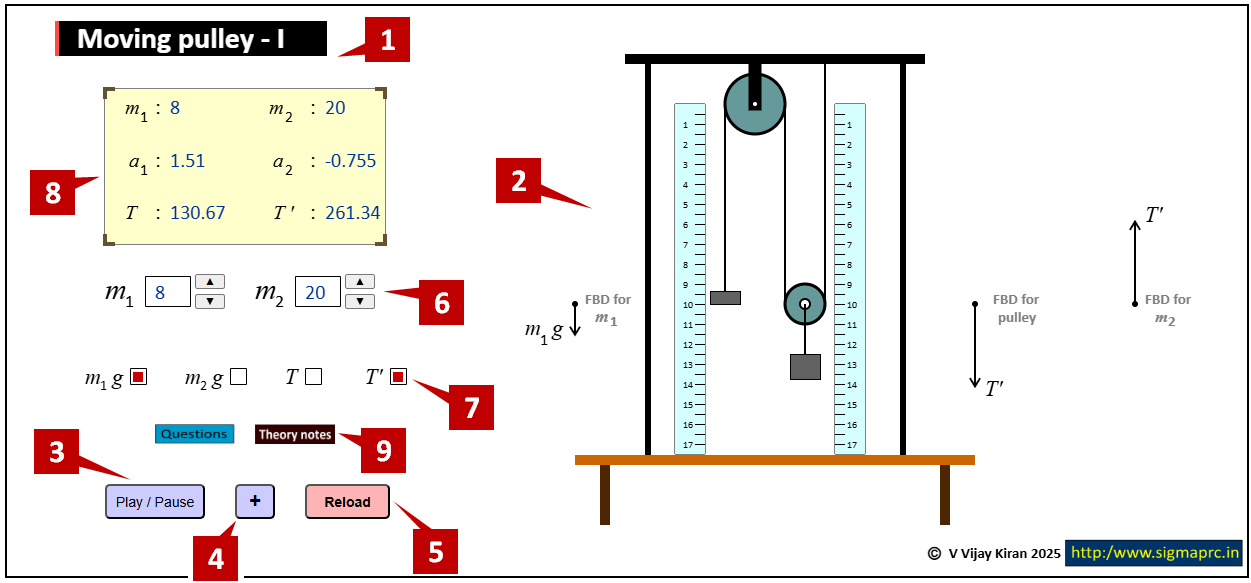
Title of the simulation
The title is based on the concept mentioned in the textbooks

-
Main simulation area
A major portion of the screen holds the simulation with movable/observable elements in it
-
Play/Pause button
This single button is used to start(run) or pause the simulation
-
Next frame button
This button ( when provided in the simulation ) is used to move the simulation to the next instant of time. This can be used to observe the phonemonenon in detail step-by-step.

-
Reload button
This button ( when provided ) is to bring the simulation to the initial condition, with the currently defined input values by the user. This can be used to rerun the simulation along with the play button.

-
Input parameters
Input parameters can be defined by the user. The values can be altered using up/down arrows to increase/decrease the value mentioned on the LHS of thte buttons
-
Toggle buttons
Toggle buttons are provided in certain simulations to view/hide some elements of the simulations depending on the choice of the user
-
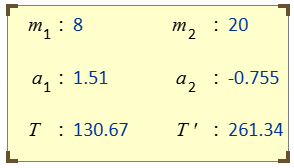
Text display
The values desired as the output during the run of simulations are displayed in the yellow box
-
Additional links
Links are provided to Theory, Questions & some approximations used in developing/using the simulations.
